Linux · Wayland · wlroots 0.18 · GPL-3.0

Atlas,
on Linux.

atlas_wm is SIEOS's desktop as a Wayland compositor for Linux. Title tabs, the Deskbar, four workspaces, and everything in SIEOS's glass: what is behind it shows through, blurred. Your Linux apps, Wayland and X11, run in it as they are.

Work in progress. It is not stable yet.

The desktop

Laid out as BeOS's was,
in frosted glass.

The same desk, tabs and Deskbar as SIEOS, drawn by SIEOS's own rasterizer. Apps keep their own colours. Nothing runs when nothing happens.

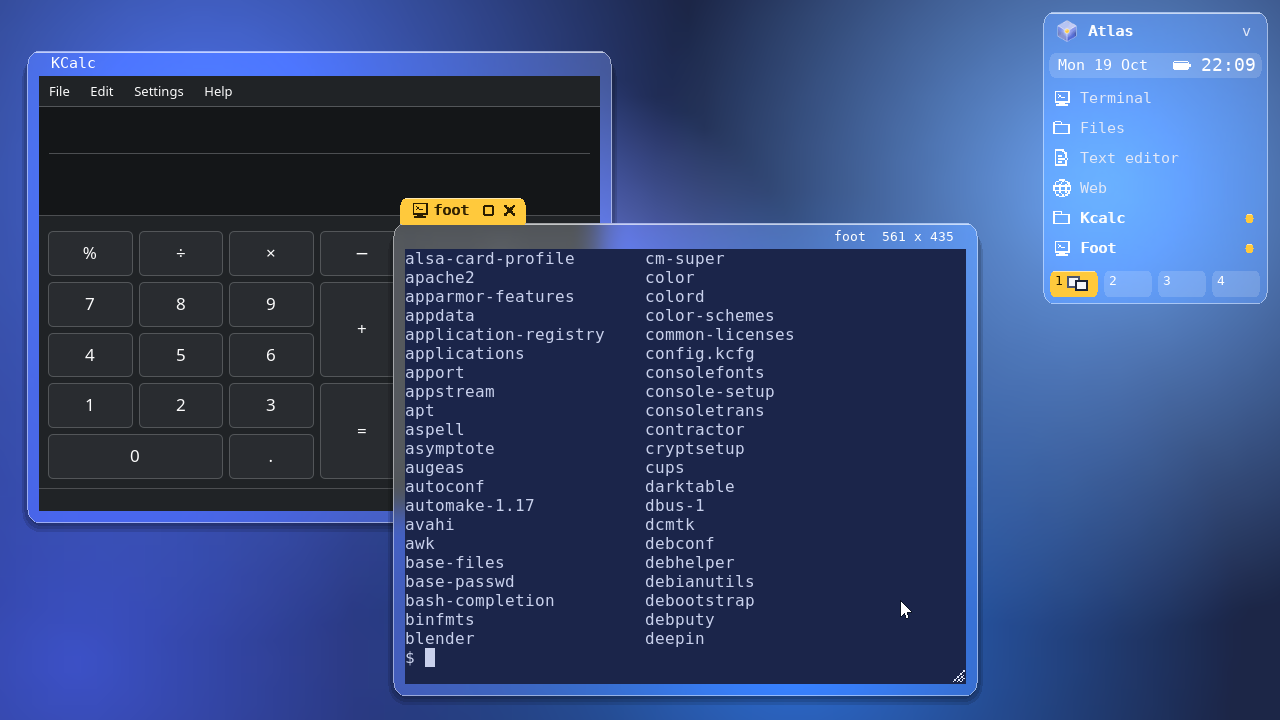
Atlas on Linux: foot in front of KCalc, foot's tab in amber, the Deskbar at the top right with the date, the battery and the clock
1

Windows with tabs

A tab as wide as the title. The focused one rises in amber, the others sink back. Drag to move, double-click to minimize, right-click for zoom, full screen and workspaces; resize by any edge, or Super+drag.

2

The Deskbar

The cube's menu, the date, the battery and the clock, then your apps: a running one is bold with a lit dot and its number of windows. An amber pill says when a window asks for you.

3

Workspaces

Four of them, each cell a small map of its windows. Switching slides the windows aside as they fade; an empty one shows the time, large and dim.

4

The palette

Super+Space: type to find an app, a window, a file in your home, Settings, Lock or Log out, or run what you typed.

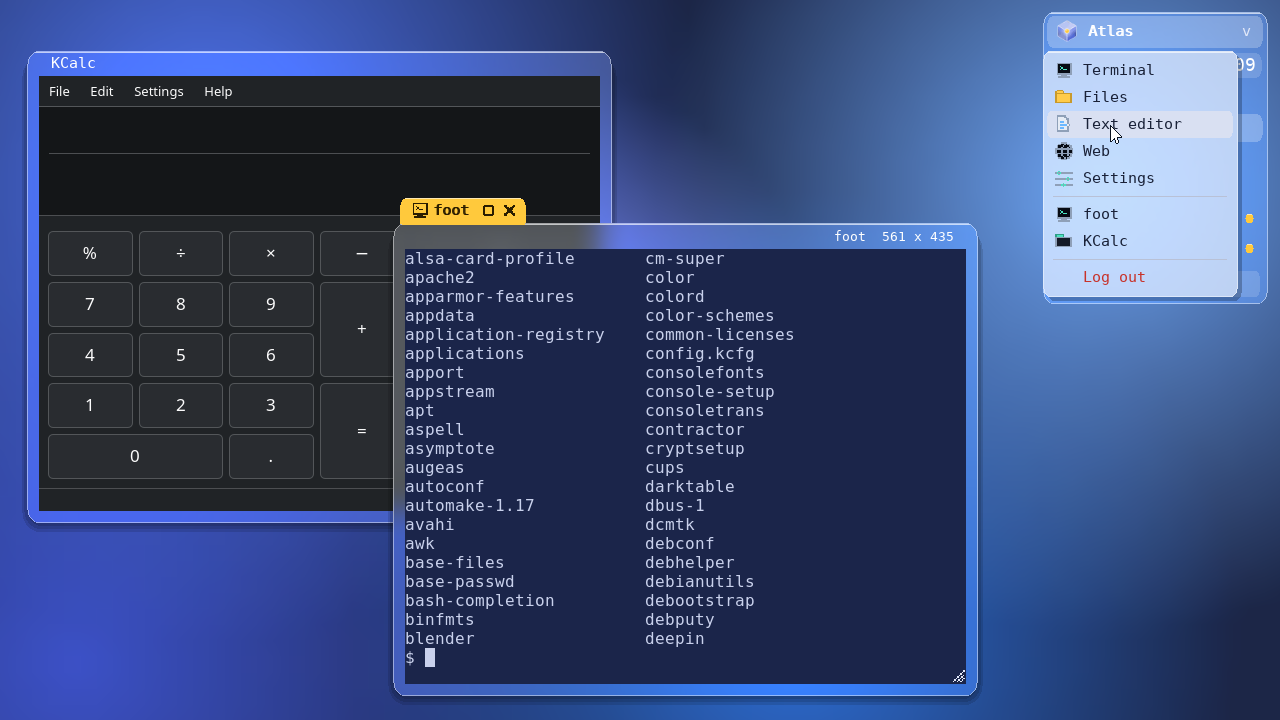
The cube's menu open on milky glass: the apps, the open windows, Log out
The cube's menu. The apps, every window, Lock and Log out.
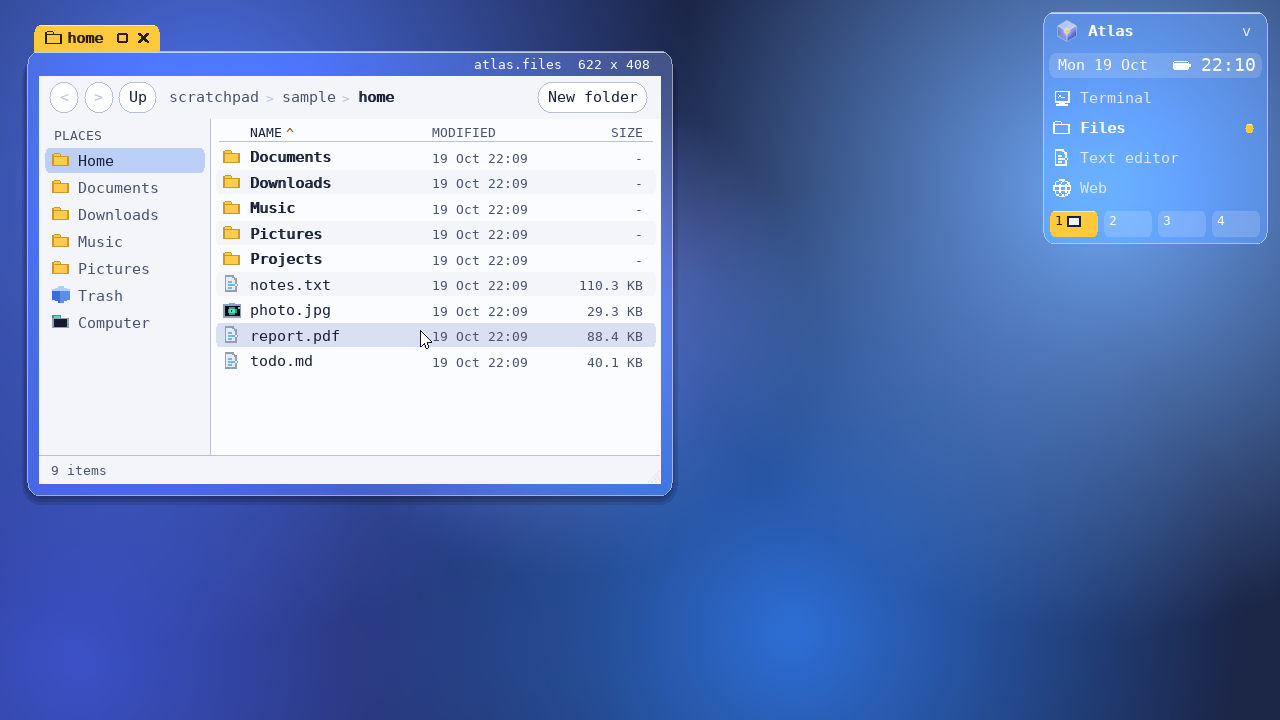
atlas-files: places at the left, a home folder listed by name, kind, date and size
Files. Atlas's own file manager, a separate app: a slow folder never touches the desktop.

A real Linux desktop

Your apps, panels
and tools, as they are.

atlas_wm speaks the protocols the Wayland world uses, so the usual tools work with it.

Wayland and X11 apps

Atlas draws the decorations for apps that let it (Qt, Firefox, foot, GTK 3). GTK 4 and libadwaita apps keep their header bar, with the tab over it. Xwayland starts with the first X11 app, whose windows get a tab, a frame and a Deskbar row like the others.

xdg-decoration, KDE server-decoration, Xwayland.

Panels and wallpapers

waybar, swaybg, mako, fuzzel: layer-shell surfaces sit in four layers, and a panel with an exclusive zone takes its room from the screen. External taskbars see every window and can bring, minimize, zoom or close it.

wlr-layer-shell, wlr-foreign-toplevel, ext-foreign-toplevel-list.

A lock screen

SIEOS's lock screen with your name and the time; PAM checks your password in a process of its own. Super+L, the menu, or SIGUSR1 from swayidle. swaylock and gtklock work too.

PAM, ext-session-lock, ext-idle-notify, idle-inhibit.

Several screens

Each screen has its own room for windows. A window belongs to the screen that holds its tab; drag it across. All screens switch workspace together. Arrange them with wlr-randr or kanshi.

wlr-output-management, wlr-output-power-management.

Sharp at any scale

Fractional scales from 100% to 200%. Apps that know fractional scaling (GTK 4, Qt 6, foot, Firefox, Chromium) draw at that scale and stay sharp; Atlas's own parts follow, from 50% to 400%.

wp-fractional-scale.

Settings

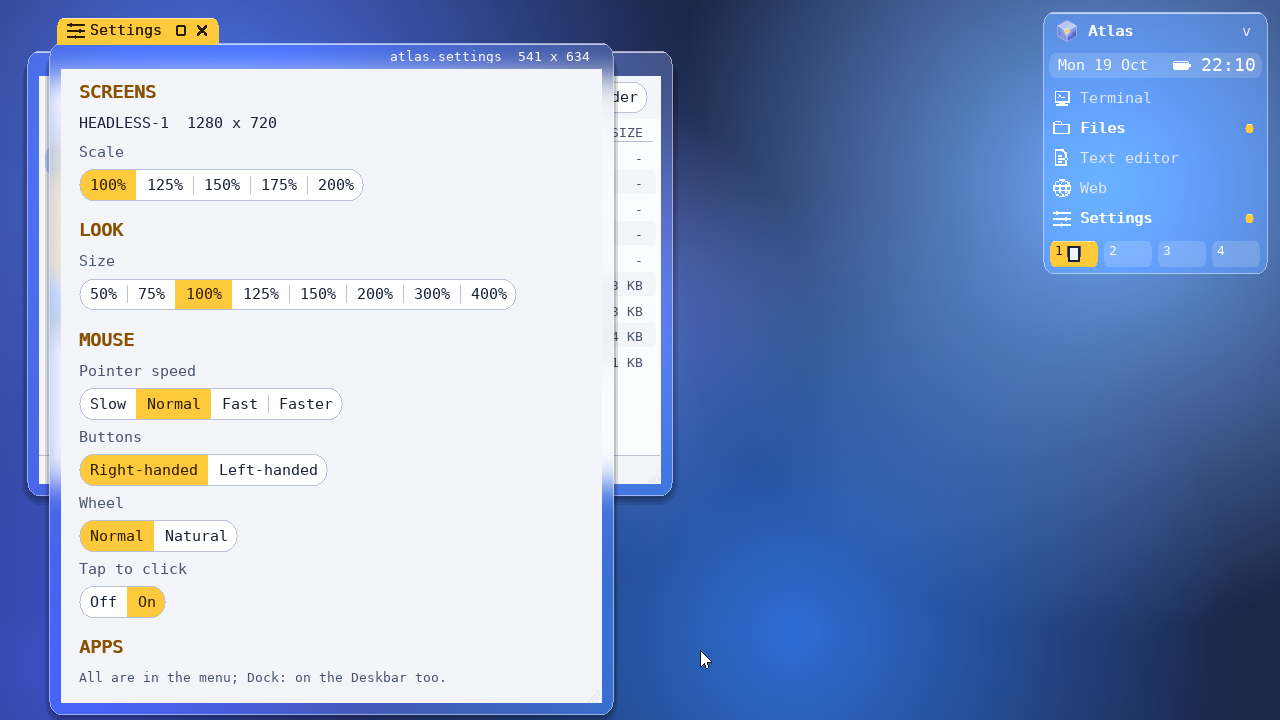
A window of Atlas's own: each screen's mode and scale (a new mode goes back after 15 s unless you keep it), the size of the desktop, the mouse, and the apps of the menu and the Deskbar. Plain text files in ~/.config/atlas.

Add any installed app, or a running one.

Atlas's Settings: screens and their scale, the size of the look, the mouse, the apps
Settings. Everything applies at once, and is kept in ~/.config/atlas.

Keys

Super for the desktop,
Ctrl for the apps.

Super is the Windows key, so Atlas's keys never collide with an app's.

KeysWhat they do
Super+T, Super+Returna terminal
Super+Spacethe palette: apps, windows, files, actions, a command
Super+W, Super+Qclose the window in focus
Super+Tabthe backmost window comes in front
Super+1 .. 4a workspace; with Shift, send the window there
Super+Up, Down, Fzoom, minimize, full screen
Super+,Settings
Super+Llock the screen
Super+Shift+E, Ctrl+Alt+Backspacequit

Build and run it

Try it in a window,
then log in to it.

On Debian 13 (trixie). It needs wlroots 0.18.

1

Build

sudo apt install libwlroots-0.18-dev libwayland-dev \
  wayland-protocols libxkbcommon-dev libpixman-1-dev \
  libdrm-dev libegl-dev libgles-dev libinput-dev \
  libxcb1-dev libxcb-icccm4-dev libpam0g-dev \
  pkg-config xwayland foot
git clone https://github.com/omoulin/sieos_atlaswm.git
cd sieos_atlaswm && make

foot is optional: the Deskbar uses the first terminal it finds.

2

Try it in a window

dbus-run-session ./atlas_wm

From a GNOME, KDE or sway session, it opens a window that is a whole Atlas desktop. atlas_wm -s foot starts a program with it.

3

Make it your session

sudo make install     # /usr/local/bin/atlas_wm
sudo make uninstall   # takes it all away

Then choose Atlas from the gear menu on GDM's login screen, or the session menu on SDDM's.

4

From a text console

dbus-run-session atlas_wm

Logged in on Ctrl+Alt+F3. Each line of ~/.config/atlas/autostart runs at the start.

No warranty

atlas_wm is free software, provided “as is”, without warranty of any kind, express or implied, including but not limited to the warranties of merchantability, fitness for a particular purpose and non-infringement. You use it entirely at your own risk. See the GNU General Public License v3, sections 15 and 16, for details.

How the glass works

Drawn twice,
blurred once.

A piece of chrome cannot see what is behind it. So Atlas draws its glass twice, over black and over white; where they differ is how much of what is behind shows through. Each frame the scene is drawn both ways, and a shader lays the blurred, slightly more vivid picture of what is behind under the glass.

  • SIEOS's look. The navy desk with its blue glows, the tabs, the Deskbar and the menus come from SIEOS's display list and rasterizer, drawn on the CPU.
  • SIEOS's window manager. Tabs, placement, moving, resizing and workspaces come from SIEOS's wm.c.
  • Only what changed. A 16 ms timer runs only while something moves; fades and slides move buffers, nothing is drawn again.
  • No glass in sight, as with an app full screen: the scene goes straight to the screen.

Not yet

What it does not do yet.

  • Keyboard layouts are not in Settings: they come from XKB_DEFAULT_* or /etc/default/keyboard.
  • Screen positions are not in Settings: screens open side by side, and wlr-randr or kanshi move them.
The desktop of a microkernel written from scratch, on the Linux you already have.